Get help fast
Welcome to LoadNode support: straight answers from the handloaders who built the app, plus the quickest way to reach a real person. Below are the seven questions we hear most. If yours isn’t covered, scroll to the bottom and email us; we read every message.
Fastest contact: info@loadnode.app: include your device, OS version, and a screenshot if it’s a bug.
7 quick answers
1. How do I get started?
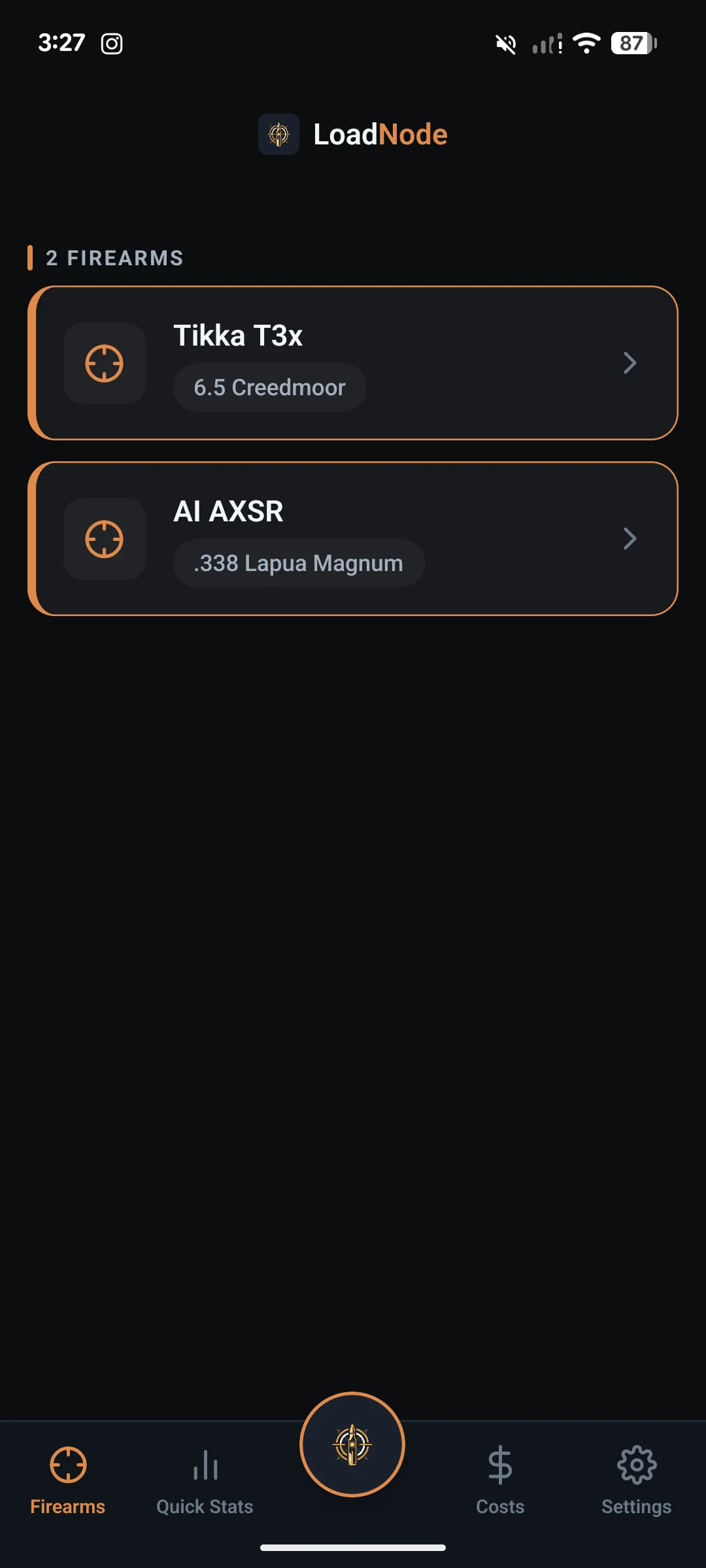
Tap Add Firearm, then create a recipe (bullet, powder, primer, brass) and a load job. Start a charge-ladder session, enter or sync your velocities, and live SD and ES appear instantly. The core logbook is free, needs no account to begin, and works offline; AI group analysis, cloud sync and the optional weather autofill are the parts that need a connection. The pre-release beta is the one exception to that, covered in question 4 below.
2. How do I sync my chronograph?
Chronograph sync is a Pro feature. Connect first: on your charge-ladder session screen tap Chrono (top right), then Scan for chronograph and pick your Garmin Xero. Then shoot your string, press End Session on the Xero, tap the charge row to open its velocity keypad, and tap Sync shots from chrono to pick the session. On a Xero C2 you can tap Go Live on that same panel instead and each shot lands in the app as you fire, then tap End Session when the group is done. For chronograph hardware or firmware issues, see Garmin’s Xero support.
Athlon Rangecraft Velocity Pro: close the Athlon Ballistics app first, since the radar connects to one app at a time. Tap Chrono, then Scan for chronograph, pick the radar (its name starts with AthlonVPR) and type the six-digit code it shows when your phone asks to pair. Start a session on the radar with a shot log open and each shot lands as you fire; end the session on the radar when the group is done. To bring in a session you already shot, tap Sync shots from chrono and pick it. Step-by-step help is in the FAQ. Support for more chronographs is on the roadmap.
3. How does group measurement work?
Photograph the target square-on, set a known distance to calibrate the scale, drop your point of aim, and tap each bullet hole. LoadNode returns center-to-center group size, MOA and MIL, mean radius, and your point-of-impact offset. You can burn a movable, resizable data box onto the photo (bullet, powder, neck tension, shoulder bump, group size and more) that stays pinned where you place it, and you can swipe left to delete a charge or a saved group. Step-by-step detail is on the FAQ.
4. Do I need an account or an internet connection?
In the released app, neither. LoadNode is local-first: the logbook, the SD and ES maths and group measurement all work with no signal at the range, and your data lives on your device. The parts that do need a connection are AI group analysis, cloud sync and the optional weather autofill; an account only exists if you choose one of the first two, and both are off until you ask for them. One beta-only exception: the pre-release beta signs you in and re-checks your access with the server the whole time it is open, so it needs a connection throughout and locks if it cannot reach us. The released app will not.
5. How do I move my data to a new phone?
Two ways. Make a password-encrypted backup in Settings (free for everyone, AES-256, photos optional), save the file to your Files app, Google Drive or anywhere else you keep documents, and restore it on the new device with the same password: keep that password safe, because it is never stored and a lost one cannot be recovered. Or turn on Pro cloud sync to keep multiple devices in step automatically. Your data stays portable either way.
6. How does billing work?
LoadNode Pro is a one-time purchase: no subscription, ever. LoadNode is in pre-release beta and not yet on sale; at launch, purchases will run through Google Play, where you can manage them or request a refund in your store account settings. Cloud sync and AI group analysis are both included with Pro: your purchase comes with 10 AI analyses, granted once when you buy. If you want more after that, optional credit packs top you up (50 analyses for $7.99, 110 for $14.99) and analyses never expire. Prices shown in USD; your store charges in your own currency and shows the exact price before you buy.
7. How do I delete my account and data?
Anytime, in the app: Settings → Account → Delete account deletes your account and promptly erases your synced records and target photos from our servers; residual backup copies are purged within 30 days. Prefer email? Write to us. See the Privacy Policy for how your data is handled.
Troubleshooting
My chronograph won’t connect
Make sure Bluetooth is on, the chronograph is powered and within a few feet, that no other app (such as Garmin ShotView or Athlon Ballistics) is connected to it, and you’ve granted LoadNode Bluetooth permission in your phone settings. Toggle the chronograph off and on, then retry Sync shots from chrono. If an Athlon will not pair, remove it from your phone’s Bluetooth settings, scan again in LoadNode and type the new code it shows. Chronograph sync is a Pro feature, so check you are signed in to the account that holds Pro. If the hardware or its firmware is the problem, the maker’s support is the place to go: Garmin (linked above) or Athlon Optics.
My group measurement looks off
Measurement accuracy depends entirely on the scale calibration. Re-check that you set the known distance between two clearly identifiable points, and that the photo was taken square-on to the target rather than at an angle: a tilted photo skews the math. Re-calibrating almost always fixes it.
My velocities didn’t import
Confirm you ended the session on the chronograph (End Session on a Xero) before tapping Sync shots from chrono, and that you picked the right session from the list. With any chronograph you can also enter velocities by hand on the glove-friendly keypad and still get live SD and ES.
Before you contact LoadNode support
To get the fastest possible answer, have these ready when you email LoadNode support:
- Your phone model and OS version
- The app version (Settings → About)
- What you expected versus what actually happened
- A screenshot or short screen recording if it’s a visual bug
The more detail you give us up front, the faster we can reproduce the issue and get you back to load development.
Still need LoadNode support?
Email info@loadnode.app with your device, OS version, and a screenshot for bugs: that is the fastest route to LoadNode support, and a real handloader reads every message. While you’re here, browse our Reloading Resources, the Privacy Policy, and the Terms of Service.