The Garmin Xero C1 is one of the easiest chronographs to set up on a bench, and it has earned a reputation for accuracy: but its velocity numbers are only useful if they make it into your load record. This guide explains how the Xero captures data, how the ShotView app fits in, and the options for getting those velocities into your reloading log without fat-fingering every number.
In this guide
- How the Garmin Xero works
- The ShotView app
- Option 1: manual entry
- Option 2: automatic sync
- Why linking it to the load matters
- Tips for clean data
- The Garmin Xero in LoadNode
How the Garmin Xero works
The Garmin Xero C1 is a compact Doppler radar chronograph. You set it beside the muzzle, and for each shot it measures muzzle velocity directly: no shooting through fragile optical sensors or skyscreens. It records each shot in a session and computes the string statistics you care about on the device itself: average velocity, standard deviation, and extreme spread, among others.
The ShotView app
The Xero pairs over Bluetooth with Garmin’s free ShotView app on your phone, where you can watch shots land in real time, name and review sessions, and see their stats. ShotView is a great companion for the chronograph, but it is not a reloading log: it does not know your charge weight, seating depth, primer, or which group those velocities produced. For details on the device and app, see Garmin support.
Option 1: manual entry
The simplest path is to read the velocities, off the Xero screen or in ShotView, and type them into your logbook or reloading app by hand. It works with any chronograph, but it is slow, and it is easy to transpose a digit on a cold, windy range. For a quick few shots it is fine; for a full charge ladder across many charges, it gets tedious fast.
Option 2: automatic sync into your log
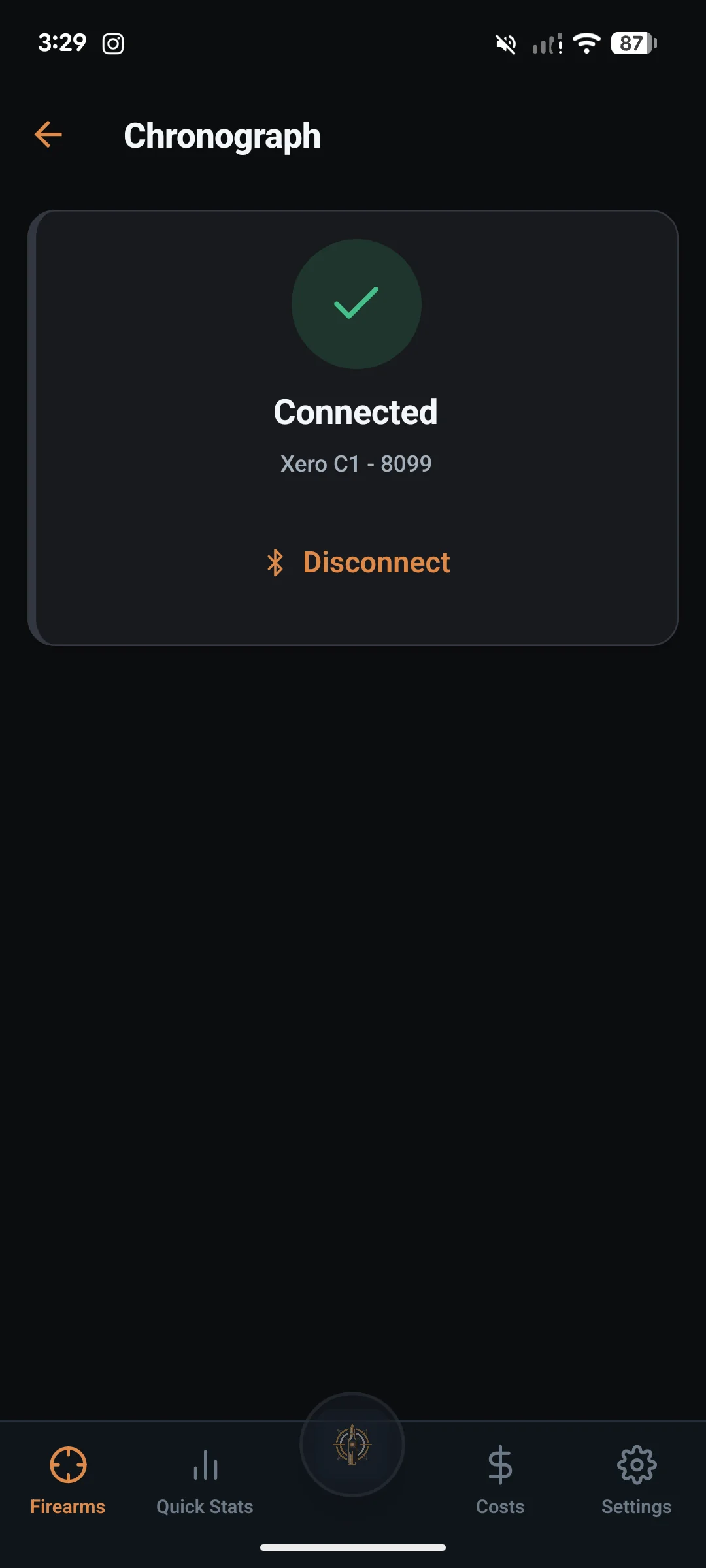
The better path is to pull the Xero’s saved session straight into your load record over Bluetooth. LoadNode does this with the Xero C1, as part of Pro. Connect once: on your charge ladder tap Chrono at the top right, then Scan for chronograph and pick your Xero. From then on, shoot your string, end the session on the Xero, open the charge row’s shot pad and tap Sync shots from chrono to pick the session: every shot drops into the right charge, no transcription. The velocities arrive already attached to the load that produced them.
Why linking velocity to the load matters
A velocity number on its own is trivia. Tied to a specific charge, seating depth, and group, it becomes load development. With the data in your log you can compute a meaningful SD, ask whether two charges are really different or whether you are chasing noise (a short ladder, as it happens, cannot confirm a velocity node), and correlate velocity with where the shots landed. That correlation is the whole point of chronographing in the first place. LoadNode’s charge comparison, part of Pro, reports the rest: 95% intervals, and how many more rounds it would take to tell two charges apart. It never names a winner.
Tips for clean chronograph data
A few habits make your velocity data trustworthy. Place the Xero in a consistent position relative to the muzzle each time, shoot enough rounds for a meaningful SD (five is a minimum, ten is better), and end the session on the Xero before you sync so the string is complete. Above all, keep track of which charge each session belongs to so nothing gets mixed up later. Garbage in, garbage out applies to chronograph data as much as anything: one tidy, complete session is worth more than three rushed ones.
The Garmin Xero in LoadNode
In LoadNode, the Xero C1 connects over Bluetooth and drops a completed session straight onto your charge ladder: SD and ES recompute the moment those shots land, and the string stays linked to your recipe and charge. Save a measured group against that same charge and the group travels with it too. Chronograph sync and saving a group both come with the one-time Pro purchase. The Garmin Xero C2 is supported as well, including live shot-by-shot capture while the string is still in progress; support for other chronographs is on the way. Either way, you can always enter velocities by hand on a glove-friendly keypad if you prefer. LoadNode organizes your data; it never tells you what to load.
Handloading is an adult activity. LoadNode is a logbook and analysis tool: it never provides load data. Always develop loads from current published data, start low, and work up safely.